
Discover the Plugin's Features
Jupyter for Obsidian is a simple plugin and does basically three things:
- Run a Jupyter server for you (instead of opening a terminal and typing
jupyter [...]). - Tell Obsidian how to open
.ipynbfiles. - Let you embed notebooks inside other notes, so you can reference them without leaving what you're writing.
This is a very minimal plugin, hence I'm interested in your feedback to build from here.
Starting Jupyter
Opening .ipynb files inside of Obsidian still requires you to start a Jupyter server. Good news, the plugin can handle this for you.
There are three ways for you to start a Jupyter server:
- Simply open a
.ipynbfile. By default, the plugin is configured to automatically run Jupyter before opening the file. - Use the ribbon icon, unless you have disabled it.
- Navigate to the settings of the plugin and use the Server running setting to toggle the state of the Jupyter server.
Configuring Jupyter
Chossing Between Lab and Notebook
You can open your .ipynb files using either Jupyter Lab or Jupyter Notebook, depending on your preferences. You can change this behaviour using the setting Jupyter environment type.
Choosing the Python Executable
By default, the plugin will simply use a python shell command to run Jupyter. However, if you installed Jupyter in a Python virtual environment or with Conda/Miniconda, you'll want to change the Python executable.
You can do so by changing the setting Python executable path. If you want to use an executable path instead of the python command, you must also ensure that Python executable to use is set to Specified executable path, otherwise the python command will still be used.
In particular, if you use Conda or Miniconda, see this guide to find the executable path you should use.
Embedding Notebooks
You can embed a notebook inside another note the same way you'd embed an image or another note in Obsidian, using ![[notebook.ipynb]]. See Obsidian's own documentation on embeds if you're not familiar with the syntax.
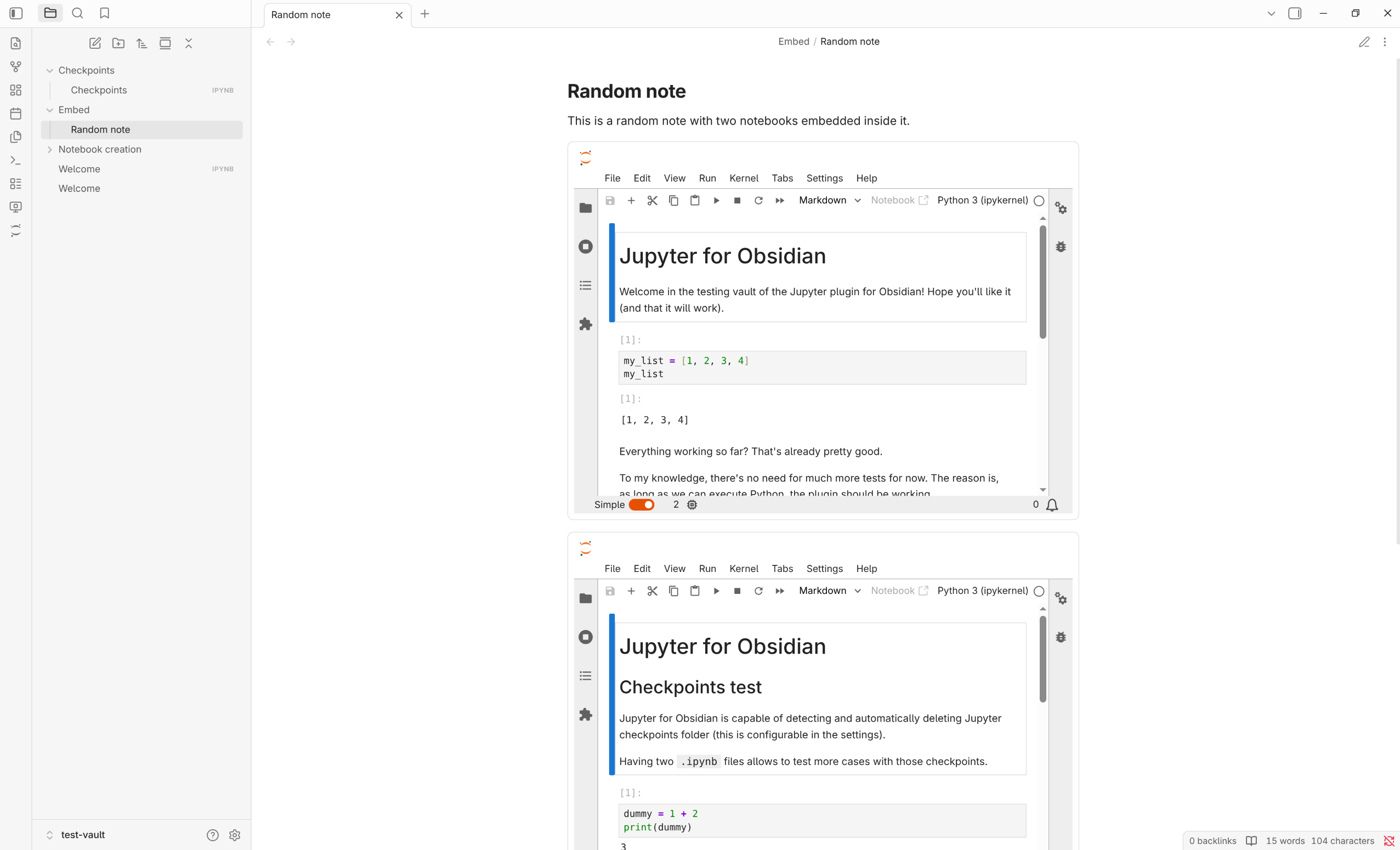
The embed shows the notebook itself, live, in whichever of the following contexts you're viewing the containing note in:
- Reading mode: the embed appears inline, in place of the
![[...]]syntax. - Live Preview: the embed appears inline while editing too.
- Hover preview: hovering a link to a notebook (holding Ctrl/Cmd where Obsidian requires it) shows a preview of its content, without navigating to it.
In reading mode and Live Preview, what the embed shows depends on the Jupyter server's status: a message while it's starting, a button to start it if it isn't running, or the actual notebook once it is. The height of the embed when the server is running can be adjusted with the Embedded notebook height setting.
Toggle Ribbon and Status Notices
By default, the plugin will show a ribbon icon allowing you to start and stop the Jupyter server in one click.

It will also display status notices to tell you how the server is doing. One will be displayed when the server is starting, running or has exited.
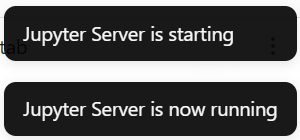
You can disable both the ribbon icon and the status notices individually using the two corresponding settings, if you do not find them necessary.